Troubleshooting
Common issues and how to fix them.
Obsidian Setup Issues
Obsidian CLI not available
Symptom: /cook or other skills fail with “Obsidian CLI is not available.”
Fix:
- Make sure Obsidian is running and your vault is open
- Go to Settings → General → scroll to Advanced → enable Command line interface
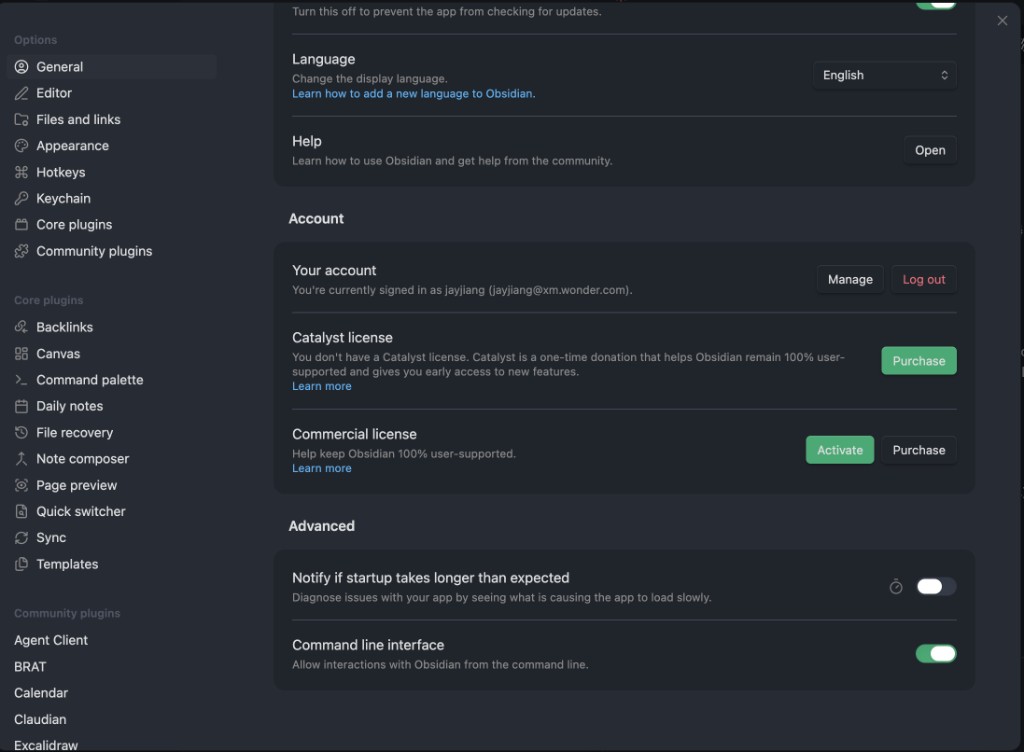
- Verify in your terminal:
obsidian --version - If the command is not found, restart Obsidian and try again
The CLI toggle only takes effect while Obsidian is running. If you close Obsidian, the CLI becomes unavailable.
INDEX.base doesn’t open / shows “Unknown file type”
Symptom: Clicking INDEX.base in Obsidian does nothing or shows an error.
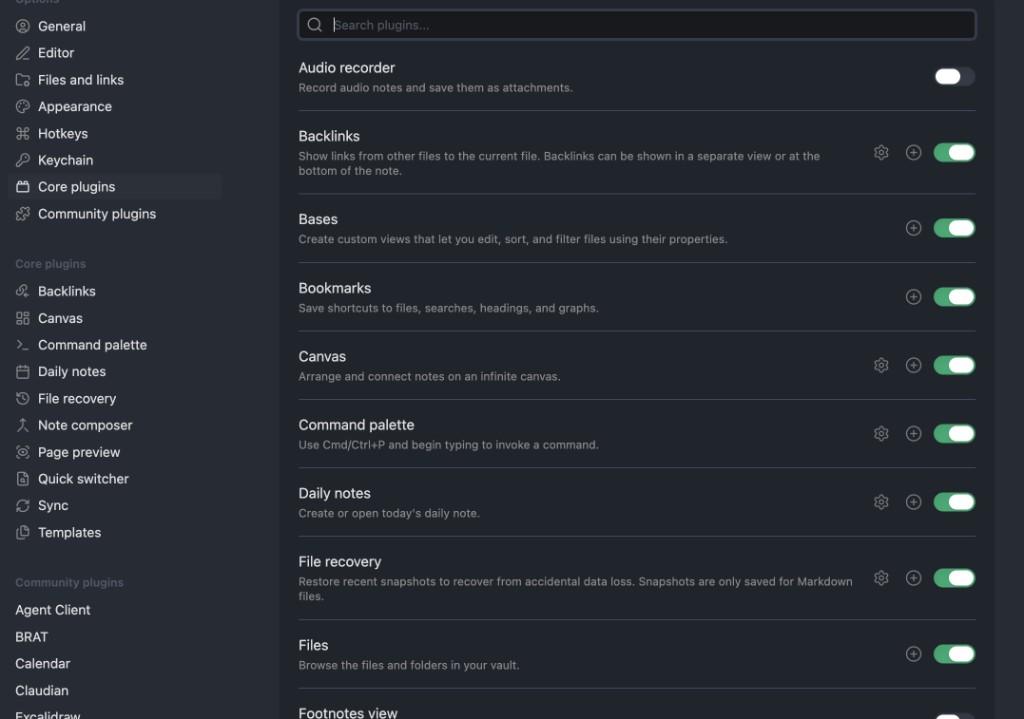
Fix: The Bases core plugin must be enabled.
- Go to Settings → Core plugins
- Find Bases and enable it
Agent read INDEX.base but still can’t list pages
Symptom: You (or your AI agent) ran obsidian read file="INDEX.base" and expected note titles in the output, but you see YAML/views/filters instead.
Why: INDEX.base is an Obsidian Bases index file. On disk it holds the definition Obsidian evaluates into a live table (with paths, tags, dates, backlinks, etc.). The CLI read command returns that definition, not the rendered rows.
Fix:
- Treat
INDEX.baseas the canonical wiki index: parse it for path and property scope, then runobsidian properties(e.g. bytype=entity/concept/comparison/query),obsidian search,obsidian tags, andobsidian backlinksto list and traverse the same notes the Base shows in Obsidian. - Follow the
/askskill end-to-end — it encodes this Bases + CLI workflow. - Run
/wikiwhen the Base query, views, or columns need to match your growing knowledge map.
Frontmatter not visible in sidebar
Symptom: Agent pages have YAML frontmatter but you can’t see the metadata fields in the sidebar.
Fix: Enable the Properties view core plugin.
- Go to Settings → Core plugins
- Scroll down and enable Properties view
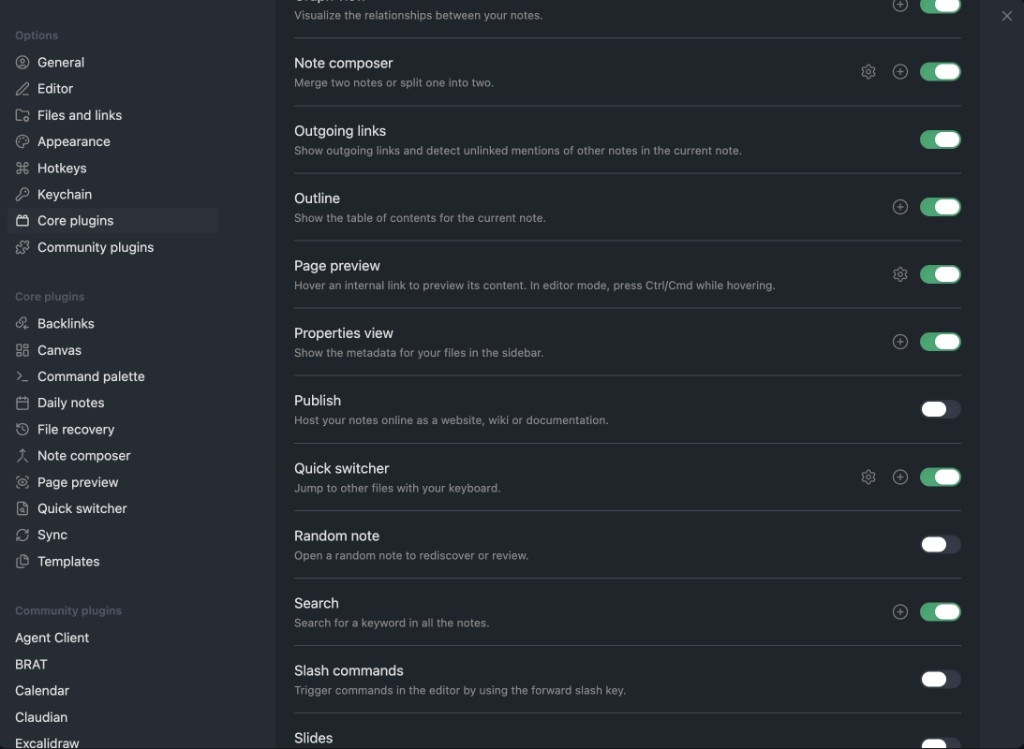
Properties view shows type, tags, sources, and other frontmatter fields in a structured sidebar panel.
Images scattered alongside notes
Symptom: When you paste or drag images into Obsidian, they land in the same folder as the note instead of a dedicated folder.
Fix: Configure the attachment folder:
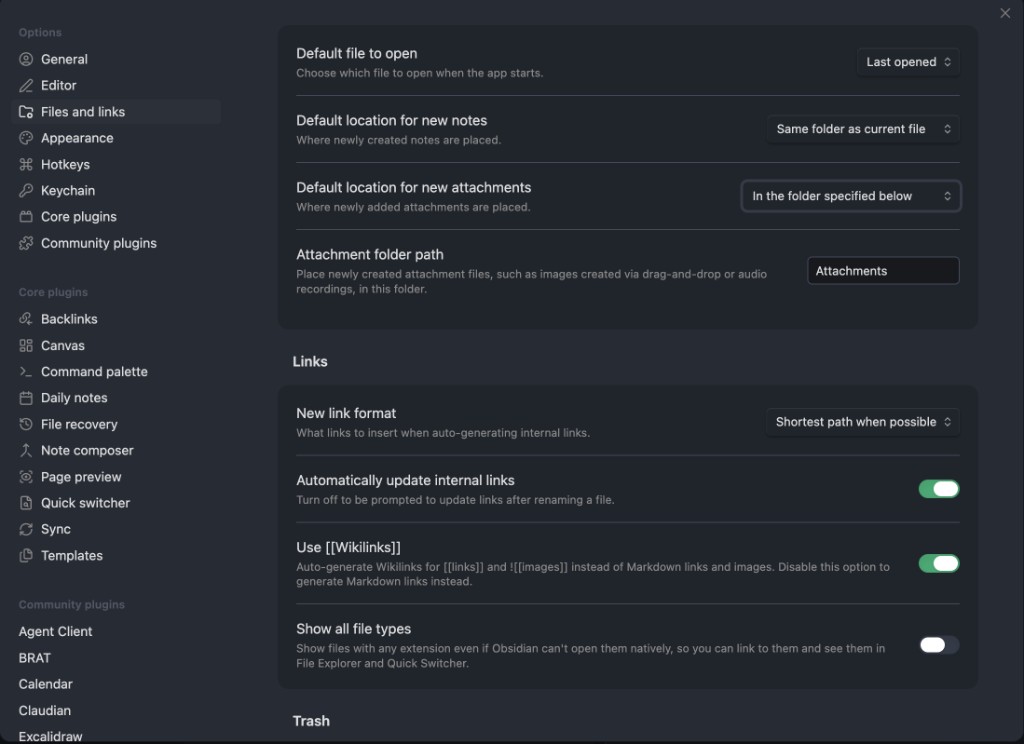
- Go to Settings → Files and links
- Set Default location for new attachments to “In the folder specified below”
- Set Attachment folder path to
Attachments
Required core plugins checklist
After opening your vault for the first time, verify these core plugins are enabled in Settings → Core plugins:
| Plugin | Required for | Default |
|---|---|---|
| Backlinks | Viewing incoming links to agent pages | On |
| Bases | Opening INDEX.base knowledge map | On |
| Canvas | Canvas files in the vault | On |
| Command palette | Cmd+P command access | On |
| Properties view | Viewing frontmatter in sidebar | On |
If any are disabled, toggle them on. No restart required.
Agent Client Issues
Agent Client stuck on “Connecting to OpenCode…”
Symptom: The Agent Client panel in Obsidian shows “Connecting to OpenCode…” and never connects.
Fix:
- Press
Cmd+P→ type “Reload app without saving” → Enter - Reopen the Agent Client panel
- If still stuck, close Obsidian completely and reopen it
- Verify OpenCode works from the vault directory:
cd /path/to/vault && opencode acp - If you see a config error, check
~/.config/opencode/opencode.jsonfor invalid entries
Obsidian plugins not appearing
Symptom: Agent Client or BRAT don’t show up after byoao init.
Fix:
- When opening the vault for the first time, click “Trust author and enable plugins”
- Go to Settings → Community plugins and verify they are enabled
- If Obsidian was running during
byoao init, restart it or use Cmd+P → “Reload app without saving”
Plugin not loading in OpenCode
Symptom: BYOAO tools don’t appear in OpenCode sessions.
Fix:
- Check that BYOAO is registered: look for
"byoao"in.opencode.json(project-level) or~/.config/opencode/opencode.json(global) - Re-run
byoao installto re-register - Restart OpenCode after installing
Knowledge Base Issues
/cook doesn’t find my notes
Possible reasons:
- Files are excluded: /cook skips
.obsidian/,.git/,node_modules/, agent directories, AGENTS.md, and binary files - Wrong vault: Make sure the correct vault is open in Obsidian
- Non-markdown files: /cook only processes
.mdfiles. PDFs, images, and other files are skipped - Already processed: In incremental mode, /cook only processes notes modified since the last run. Use
/cook --allto re-read everything
AGENTS.md looks wrong or has missing sections
What byoao upgrade actually does: It syncs packaged infrastructure (for example .opencode/skills/) when your vault’s recorded BYOAO version in .byoao/manifest.json is older than the installed CLI. If both versions already match (e.g. CLI and vault are both 2.0.3), the tool reports the vault as up to date and does not change vault files.
Important: byoao upgrade does not overwrite vault-root AGENTS.md or SCHEMA.md. Those files are generated once at byoao init from the package templates; afterward they are yours so custom edits and taxonomy are not wiped.
Global vs vault skills: byoao install -g installs skills under ~/.config/opencode/skills. byoao init also copies skills into {vault}/.opencode/skills. After you upgrade the npm CLI, run byoao upgrade from the vault root: it updates the vault copy when needed, and whenever ~/.config/opencode/skills already exists it refreshes that directory from the current package—even if the vault reports “already up to date” (same manifest version as the CLI). Use byoao upgrade --force to re-copy vault skills too.
Easiest — byoao sync-docs: From the vault root, run byoao sync-docs (use --dry-run to preview). It inserts packaged sections such as Knowledge Retrieval (Q&A) in AGENTS.md and Retrieval in SCHEMA.md only when those headings are missing, without replacing whole files. Your AGENTS.md must still contain a ## Available Skills heading so the tool knows where to insert the block.
Manual merge: Copy sections from the templates in the repository (byoao/src/assets/presets/common/AGENTS.md.hbs, SCHEMA.md.hbs) or from node_modules/@jayjiang/byoao/, then paste into your vault files.
Undoing agent page changes
Agent pages live in entities/, concepts/, comparisons/, and queries/. Since /cook never modifies your own notes, you can safely delete any agent page and re-run /cook to regenerate it.
To see what changed recently, check log.md or run:
byoao logsInstallation Issues
”command not found: node” or “command not found: npm”
Symptom: Terminal says node or npm is not recognized when you try to install BYOAO.
Fix:
- You need to install Node.js first. Go to nodejs.org and download the LTS version
- Run the installer — it installs both
nodeandnpmtogether - Close and reopen your terminal after installation (the terminal needs to refresh its PATH)
- Verify:
node --versionshould printv18.x.xor higher
Still not working after install?
- Mac: Try opening a new Terminal window. If using zsh, run
source ~/.zshrc - Windows: Close PowerShell completely and reopen it. If still failing, restart your computer
”EACCES permission denied” when running npm install -g
Symptom: npm install -g @jayjiang/byoao fails with a permission error.
Fix (Mac/Linux):
sudo npm install -g @jayjiang/byoaoEnter your computer password when prompted. The sudo command runs the install with administrator privileges.
Fix (Windows): Right-click PowerShell and select “Run as Administrator”, then retry the install command.
Better long-term fix: Configure npm to install global packages without sudo:
mkdir -p ~/.npm-global
npm config set prefix '~/.npm-global'
echo 'export PATH=~/.npm-global/bin:$PATH' >> ~/.zshrc
source ~/.zshrc
byoao install says “OpenCode not installed”
Symptom: Install warns that OpenCode is not found.
Fix:
- Install OpenCode:
npm install -g opencodeor visit opencode.ai - If you just installed it, open a new terminal window (the PATH may not be updated)
- You can still use
byoao initandbyoao statuswithout OpenCode — the AI skills just won’t be available
byoao init fails
Common causes:
- Path permissions: Make sure you have write access to the target directory
- Path already exists as a file: The vault path must be a directory, not a file
- Obsidian not installed:
byoao initchecks for Obsidian first. Install it from obsidian.md
”Knowledge/ exists but contains no markdown” (vault diagnosis)
Symptom: A health or diagnosis report shows an info message that folder Knowledge/ exists but has no Markdown files, and mentions BYOAO v2.
Why: BYOAO v1 used a Knowledge/ directory; v2 uses the agent folders (entities/, concepts/, etc.) at the vault root. An empty or unused Knowledge/ folder is harmless legacy clutter.
Fix: If you do not need that folder, you can delete Knowledge/. Your v2 notes and /cook output are not stored there.
MCP Service Issues
MCP service connection expired (Atlassian / BigQuery)
Symptom: Agent says “Atlassian connection failed” or BigQuery queries return authentication errors.
Fix:
- Ask the agent to run
byoao_mcp_authto re-authenticate - A browser window should open for re-authentication
- For Google services, make sure to select your work account
- Complete the login, then return to Obsidian
- Check if the MCP connection indicator is now green
- If green, ask the agent to retry your request
- If NOT green, click ”…” → Restart agent to reload the connection
If this doesn’t work, restart Obsidian completely.
BigQuery: authentication required
Symptom: Agent says BigQuery tools are unavailable, or queries fail with authentication errors.
BigQuery authentication happens lazily — the first time you ask the agent to query BigQuery, it will trigger gcloud auth application-default login via the byoao_mcp_auth tool.
Fix:
- Make sure gcloud CLI is installed: https://cloud.google.com/sdk/docs/install
- Ask the agent to run a BigQuery query — it should call
byoao_mcp_authautomatically - Complete the Google login in the browser window that opens
- Check if the MCP connection indicator is now green
- If NOT green, click ”…” → Restart agent to reload the connection, then retry
Checking Error Logs
If something isn’t working but you’re not sure what went wrong:
byoao logsThis shows recent errors from tools, hooks, and CLI commands. To share logs with the developer:
byoao logs --export ~/Desktop/byoao-logs.txtThe exported file includes your BYOAO version, Node version, and OS. Review it before sharing to make sure it doesn’t contain sensitive information.
See CLI Reference — byoao logs for all options.
Still Stuck?
- Run
byoao logs --export ~/Desktop/byoao-logs.txtand attach the file to your report - Check GitHub Issues for known problems
- Open a new issue with: BYOAO version (
byoao --version), Node version (node --version), OS, and steps to reproduce